Where to buy
Shopping for the best indoor security camera for apartments under $200? Check the latest price, availability and delivery on Amazon. Orders are placed on Amazon. We may earn a commission from qualifying purchases. Every camera below sits within the under $200 framing of this guide at the time of writing — check the current Amazon listing before you buy, and read each pick’s storage notes, because what a camera records for free differs more than what it costs.
- Best for renters — one camera, whole room: Ring Pan-Tilt Indoor Cam (White) — Check on Amazon
- Best for small rental corners: Blink Mini 2 (White, 1 Camera) — Check on Amazon
- Best no-drill detail camera: eufy Security Indoor Cam S350 — Check on Amazon
- Best for shared-flat privacy: Arlo Essential Indoor Camera 2K — 2nd Generation (VMC3060) — Check on Amazon
- Best for covering two rooms cheaply: Wyze Cam v4 — Check on Amazon
- Best for Google-using renters: Google Nest Cam (Indoor, Wired) — 2nd Generation — Check on Amazon
Read the full guide ↓
Disclosure: As an Amazon Associate, dailyhomedecorating.com earns from qualifying purchases. Links to Amazon on this page are affiliate links; they cost you nothing extra. Listing details such as price and availability change often, so check the current Amazon listing before you buy.
Searching for the best indoor security camera for apartments under $200 is really a search with three extra rules that house owners never face. Rule one: nothing permanent. Most leases forbid drilling, wall anchors and adhesive damage, so a rental camera must work from a shelf, a bookcase or a tabletop and leave without a trace. Rule two: space is the currency. A camera that needs a hub, a long cable run and a dedicated corner is spending square footage a small flat does not have. Rule three: you are not the only stakeholder. Flatmates, partners and guests share the space the camera watches, and in many buildings the neighbours on the other side of a thin wall have views about hallway cameras too. The best apartment camera is therefore not simply the best camera — it is the one that fits rental life.
Apartments also change the geometry of the problem. Most renters need to watch one main living space and one door, not five rooms and a garden. That is why a single pan-and-tilt camera ranks so highly here: placed in the living area, it can check the front door, sweep the room and look toward the kitchen, then be re-aimed from your phone when you are away. Equally, small rooms forgive lower resolution and reward wide fields of view, which brings the tiny budget cameras into play as serious options rather than compromises. And because renters move, every pick here is plug-in, portable and worth packing — nothing in this guide is a fixture you would abandon at the end of a lease.
This is an indoor, apartment-specific guide. It is not a baby camera roundup — nursery-specific needs like temperature sensing and dedicated parent units are a different purchase — and it is not a general security list mixing in outdoor battery cameras you cannot mount on a rented balcony anyway. Everything below is judged on rental questions: Will it work without screws? Can flatmates see when it is off? What does it cost per month, every month, in a budget that already includes rent? And can one camera honestly cover a small flat, or do you need two cheap ones instead?
In this guide
Quick picks
| Camera | Best for | Key spec |
|---|---|---|
| Ring Pan-Tilt Indoor Cam (White) | Best for renters — one camera, whole room | 1080p HD, 360° pan / 169° tilt, attached privacy cover, Ring app and Alexa |
| Blink Mini 2 (White, 1 Camera) | Best for small rental corners | 1080p HD plug-in camera, 143° field of view, Alexa, Blink plan or Sync Module local clips |
| eufy Security Indoor Cam S350 | Best no-drill detail camera | Dual lenses: 4K wide-angle + 2K telephoto, 360° pan / 75° tilt, microSD or HomeBase 3 local storage |
| Arlo Essential Indoor Camera 2K — 2nd Generation (VMC3060) | Best for shared-flat privacy | 2K fixed camera, automated privacy shield, cloud-first with Arlo Secure plan |
| Wyze Cam v4 | Best for covering two rooms cheaply | 2.5K QHD fixed camera, microSD local recording, colour night vision, spotlight |
| Google Nest Cam (Indoor, Wired) — 2nd Generation | Best for Google-using renters | 1080p HDR fixed camera, free short event history, Google Home app, no local storage |
The table is the shortcut; the reviews below are the substance. In particular, do not choose from the table alone on storage: two of these cameras record happily to a memory card with no plan at all, while others keep their recorded history behind a subscription, and that difference will shape your ownership more than any specification in the right-hand column.
How we chose
We ranked these six through a renter’s checklist. No-drill setup came first: every pick can sit on furniture and work immediately, with wall mounting optional rather than required. Second, footprint and cable practicality — a camera whose power lead reaches the one free outlet in a rental living room beats a technically better camera that cannot be plugged in where it needs to sit. Third, whole-flat coverage per device: in a small home, one pan-and-tilt unit or one very wide fixed view can replace a multi-camera system, which saves money, outlets and app clutter. Fourth, flatmate-grade privacy: physical shields and covers rank highest, visible privacy modes next, app-only toggles last, because a camera your flatmate hates is a camera that gets unplugged.
Fifth, running cost honesty. Rent is already a subscription; a camera that adds another mandatory one needs to justify it, so we state plainly which picks record locally with no plan — the eufy and Wyze — and which need a paid plan for recorded history, as Ring, Arlo and Blink do beyond their free behaviour, and as Nest does beyond its short free history window. Sixth, portability: all six are small, wired plug-in cameras you can pack in a box on moving day. We excluded anything requiring a drilled mount, an outdoor rating a renter cannot use, or a hub that eats shelf space — with Blink’s optional module discussed honestly rather than assumed.
Detailed reviews
Ring Pan-Tilt Indoor Cam (White)
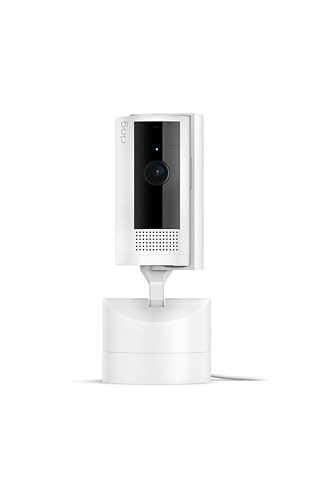
The Ring Pan-Tilt Indoor Cam is the natural pick for Alexa households and anyone already using a Ring doorbell. One camera covers a whole room: the head pans a full 360 degrees and tilts through a wide range under your control in the Ring app, so a single unit at a hallway junction or living-room corner replaces the two fixed cameras a larger space might otherwise need. Video is 1080p HD with colour night vision, two-way talk includes noise cancellation per Ring’s spec sheet, and the long power cable makes shelf and wall placement flexible.
Ring keeps this simple and entirely cloud-based: there is no local storage on this camera — no card slot, no hub option. Without a Ring subscription plan you get live view and motion alerts, but you cannot review, save or share recorded video, because recording history is a plan feature. Person and package-style smart alerts are also plan features on Ring’s current tiers. If you already pay for a Ring plan covering your doorbell address, adding this camera usually slots into that same household plan; if you do not, price the plan into your decision exactly as you would with Arlo or Nest. What you are buying into is convenience and ecosystem, not storage independence.
Ring fits this camera with an attached privacy cover that slides over the lens, and the app also offers modes and motion schedules. The cover is manual rather than motorised, so it depends on someone remembering to close it — but when it is closed, it is closed, and everyone in the room can see that it is.
For renters this is the headline pick: no drilling is required to use it on a shelf, one unit sweeps an open-plan living area, and it unplugs and leaves with you on moving day.
- Full pan and tilt coverage from one camera at a mid-range position in the tier
- Attached privacy cover plus Ring modes and schedules
- Deep Alexa and Ring doorbell ecosystem integration
- Colour night vision and two-way talk with noise cancellation, per maker specs
Honest limitation: No local storage at all and no recorded history without a subscription; the privacy cover is manual, and the camera only connects on 2.4GHz Wi-Fi.
Choose the Ring Pan-Tilt if you want one camera to sweep a whole room inside the Ring and Alexa ecosystem. Skip it if subscription-free recording is a hard requirement or your router setup makes 2.4GHz-only devices a problem.
Blink Mini 2 (White, 1 Camera)
The Blink Mini 2 is the smallest, simplest camera in this guide: a tiny plug-in unit with 1080p HD video, colour night view from its built-in spotlight, two-way audio and a wide 143-degree field of view per Blink’s specifications. It is the camera people buy in multiples — one for the front room, one for the hallway, one watching a pet’s favourite corner — because each unit sits at the budget end of the category while staying inside Amazon’s Alexa ecosystem with Echo Show viewing and routine support.
Blink’s storage story has two halves and both deserve honesty. Cloud recording, saved clip history and person detection require a Blink subscription plan; a trial plan is typically bundled with the camera, after which those features stop if you do not subscribe. The local alternative is real but conditional: with a Sync Module 2 and a USB drive, Blink can store clips locally when no cloud plan is active — the newer Sync Module Core does not offer that local storage, so check exactly which module a bundle includes before assuming you have the no-subscription path. Without either a plan or the right module, you have live view and alerts rather than a reviewable history.
The Mini 2 has no privacy shutter or cover. Privacy controls are app-based — arm and disarm, motion zones and schedules — which is adequate for entryways and pet corners, and a weaker answer than the Arlo shield or Ring cover for bedrooms and other sensitive rooms.
In a small rental the Mini 2 disappears onto a bookshelf corner, needs no mount at all, and its wide view suits the short sightlines of apartment rooms.
- Tiny plug-in design with a wide field of view for corners and shelves
- Budget-tier position makes multi-room coverage realistic
- Local clip storage possible via Sync Module 2 and USB when no plan is active
- Straightforward Alexa and Echo Show integration
Honest limitation: Person detection and cloud history need a subscription, local storage depends on owning the correct Sync Module, and there is no physical privacy cover.
Choose the Blink Mini 2 for simple, affordable coverage of several rooms inside an Alexa home. Skip it if you want card-in-camera local recording, a privacy shutter, or resolution above 1080p.
eufy Security Indoor Cam S350
The eufy Indoor Cam S350 is the pick for anyone who wants the sharpest indoor picture in this price band without signing up for a monthly plan to get it. Its dual-lens design pairs a 4K wide-angle camera that watches the whole room with a 2K telephoto camera that zooms in on a face, a doorway or a pet, and the two views can be shown together so you never have to choose between context and detail. The motorised head pans a full circle and tilts, and maker-stated AI tracking follows a person or pet across the room instead of leaving them at the edge of the frame.
Storage is where the S350 most clearly breaks from the cloud-first brands in this guide. It records to a microSD card slotted into the camera itself — the maker states support for cards up to 128GB, and the card is sold separately, so budget for one — or to a eufy HomeBase 3 hub if you already own one, which keeps footage inside your home. Local recording, playback and the on-device human, pet and sound detection work without any subscription. eufy does sell an optional cloud backup plan, but it is genuinely optional: nothing in the core recording path is locked behind it. Be precise about one limit, though — without a HomeBase, footage lives on that single card in the camera, so a stolen camera takes its card with it.
For indoor privacy, the S350 offers a privacy mode in the app that turns the lens away and stops recording, which is the honest way to handle a camera in a living room or bedroom: a physical repositioning you can see from across the room, not just a software promise. Two-way talk, activity zones and Alexa and Google Assistant display support round it out, though the maker notes Google Home integration is limited and HomeKit is not supported.
Renters who cannot run cables or fit multiple cameras get whole-room coverage from one shelf position, and the local card means no landlord network questions about cloud uploads — though you still need your own Wi-Fi.
- Dual 4K wide and 2K telephoto lenses with hybrid zoom for faces and detail
- Local microSD or HomeBase 3 recording with no required subscription
- Full pan and tilt coverage with person and pet tracking, per maker specs
- Dual-band Wi-Fi 6 support helps on crowded home networks
Honest limitation: The microSD card is not included, the camera is larger than the fixed mini cameras here, and app-based zoom and tracking features depend on eufy firmware and app updates rather than working entirely offline.
Choose the S350 if you want one camera to cover a whole room in high detail and you prefer your footage stored at home. Skip it if you want the smallest possible camera, you are committed to the Google Home or Ring app, or you specifically want continuous cloud history managed by someone else.
Arlo Essential Indoor Camera 2K — 2nd Generation (VMC3060)
The Arlo Essential Indoor 2K earns its place on one feature almost nobody else in this guide offers: an automated privacy shield that physically closes over the lens when the camera is disarmed. For an indoor camera — a device you are pointing at your own life — that visible, mechanical closed state is the strongest privacy answer in this roundup. Behind the shield sits a 2K fixed camera with night vision, two-way talk and a wide view suited to living rooms, hallways and nurseries used as a general room camera rather than a dedicated baby monitor.
Arlo is a cloud-first system and you should buy it with open eyes. Live view and basic motion notifications work without a plan, but cloud recording and video history, and the smart person, package, vehicle and animal detection that makes Arlo alerts genuinely useful, require an Arlo Secure subscription. This indoor model has no microSD slot; Arlo’s local-recording route involves a separate SmartHub base station on compatible systems, which is extra hardware and not a feature of this camera on its own. Treat the subscription as part of the product’s real price and the camera makes sense; treat it as an optional extra and you will be disappointed by how little history the free tier keeps.
The privacy shield is the headline: it opens and closes automatically as you arm and disarm, so family members can see at a glance whether the camera can see them. Combined with geofencing-style arming in the Arlo app, it is the most household-friendly privacy setup here for shared spaces and bedrooms.
Shared flats are where the shield earns its keep: flatmates can see the lens is closed when the system is disarmed, which defuses the most common camera argument in rented homes.
- Automated physical privacy shield — the clearest privacy signal in this guide
- 2K video with night vision and two-way talk
- Smart detection for people, packages, vehicles and animals on a plan
- Works within the wider Arlo camera and doorbell ecosystem
Honest limitation: Cloud recording and smart detection are subscription features, there is no memory-card slot on the camera, and the fixed lens cannot pan to follow action across a large room.
Choose the Arlo if a physical privacy shield matters more to you than avoiding a subscription. Skip it if you want local card recording included in the box, whole-room pan coverage, or a camera that keeps full history for free.
Wyze Cam v4
The Wyze Cam v4 is the value engine of this guide: a small wired camera with 2.5K QHD resolution, enhanced colour night vision, a motion-activated spotlight and two-way audio, at a budget-tier position that leaves most of an under-$200 allowance free for a second or third camera. Wyze built its reputation on exactly this formula — headline specs at prices the big ecosystems do not match — and the v4 adds a faster processor and Wi-Fi improvements over its predecessors while keeping the same simple cube form that mounts almost anywhere.
Local storage is a genuine strength here. The v4 records to a microSD card — the maker and listing state support for large-capacity cards — so event clips and, with the right settings, continuous recording can live in the camera with no plan at all. Wyze’s Cam Plus subscription exists and adds cloud storage plus richer person and pet detection, but unlike Ring or Arlo, the camera’s core recording does not stop without it. Read the fine print on free cloud stills and short cloud clips, which are a taster rather than a history archive; the card is where your real footage lives, with the usual caveat that footage stored in the camera leaves with the camera if it is taken.
There is no physical shutter on the v4. The app offers on and off control, schedules and automation rules, and the status light tells the room the camera is live. In shared or sensitive rooms, treat placement and scheduling as your privacy tools, or step up to the shielded Arlo in this guide.
Two v4s covering living room and hallway cost a fraction of the tier budget, sit on shelves without mounts, and leave nothing to repair when you move out.
- 2.5K QHD video and colour night vision at a budget-tier position
- microSD local recording works without any subscription
- Spotlight and siren features unusual at this level
- Leaves budget room for multi-camera coverage under the same ceiling
Honest limitation: No physical privacy shutter, the richest smart detection sits behind the optional Cam Plus plan, and Wyze’s app experience is more utilitarian than the Google or Ring apps.
Choose the Wyze Cam v4 if you want the most rooms covered for the money with card recording included. Skip it if you want a physical privacy shutter, a premium app, or pan and tilt movement.
Google Nest Cam (Indoor, Wired) — 2nd Generation
The wired Google Nest Cam is the pick for households already living in Google Home. It is a small, neat fixed camera with a magnetic-style stand that sits happily on a shelf, records 1080p HDR video with night vision, and — unusually at this level — includes person, animal and vehicle alerts and activity zones without a subscription, according to Google. If your home already answers to Google Assistant and your other devices live in the Google Home app, this is the camera that feels like it was always there.
Be clear-eyed about storage before you buy, because this camera has no local option at all: there is no microSD slot and no hub recording. Without a paid plan you get live view plus a short rolling window of recent event history — Google provides a few hours of event video history free. Anything longer, including extended event history and, on the higher plan tier, continuous recording for wired cameras, requires a Nest Aware subscription, now sold under Google’s premium home plans. That subscription is also what unlocks familiar-face detection. None of this is hidden by Google, but it means the true cost of a Nest camera is the camera plus a plan if you want history you can actually search next week.
There is no physical shutter or privacy cover on this camera. Privacy is handled in software: you can turn the camera off in the app, schedule it, or use Home and Away routines so it only records when the household is out. That works well for disciplined Google Home users, but if a visible, physical cover matters to you in a bedroom, the Arlo or Ring picks in this guide answer that need more directly.
For a renter already using Google Home, the Nest Cam’s small footprint and shelf stand suit temporary homes — just remember the subscription follows you as a running cost.
- Person, animal and vehicle alerts included without a plan, per Google
- Clean Google Home integration and familiar-face detection on a plan
- Compact wired design with HDR video and night vision
- Activity zones included, which several rivals reserve for subscribers
Honest limitation: No local storage of any kind, only a short free event-history window, and extended history or continuous recording is subscription-only — the camera is cloud-dependent by design.
Choose the Nest Cam if your home runs on Google Home and you accept a subscription for real history. Skip it if you want recordings stored in your house, you refuse monthly fees on principle, or you need pan and tilt coverage from a single camera.
Comparison table
| Camera | Video | Movement | Storage without a plan | Privacy control |
|---|---|---|---|---|
| Ring Pan-Tilt Indoor Cam (White) | 1080p HD | Pan and tilt | Live view only; history needs a plan | Attached sliding privacy cover |
| Blink Mini 2 (White, 1 Camera) | 1080p HD | Fixed | Live view; local clips only via Sync Module 2 + USB with no plan | App arm/disarm and schedules |
| eufy Security Indoor Cam S350 | 4K wide + 2K telephoto | Pan and tilt | microSD card or HomeBase 3 local recording | Privacy mode turns lens away |
| Arlo Essential Indoor Camera 2K — 2nd Generation (VMC3060) | 2K | Fixed | Live view only; history needs a plan | Automated physical privacy shield |
| Wyze Cam v4 | 2.5K QHD | Fixed | microSD card local recording | App off and schedules |
| Google Nest Cam (Indoor, Wired) — 2nd Generation | 1080p HDR | Fixed | Short free event-history window only | App off, schedules, Home/Away |
Read the storage column as the decision column. Resolution and movement decide what a camera can see; storage decides whether you will ever see it again. If you take one idea from this guide, take that one — and then choose the row whose no-plan behaviour you could live with permanently, because plans, trials and prices all change, while the camera on your shelf stays the same.
How to choose the best indoor security camera for apartments under $200
Decide: one moving camera or two small ones
For a studio or one-bedroom flat, one pan-and-tilt camera in the living area usually covers the door and the main room, and the Ring Pan-Tilt and eufy S350 are built for exactly that. For a two-bedroom flat with a hallway, two small fixed cameras — a Wyze v4 and a Blink Mini 2 in different spots — often watch more real life than one motorised camera that can only face one way. Count your doorways, not your rooms.
Agree the privacy rule with flatmates first
Before the camera arrives, agree where it may point — the front door and living area, never a bedroom or bathroom doorway — and when it is off. Cameras with a visible off state, the Arlo shield, Ring cover or eufy privacy mode, make that agreement enforceable at a glance. Write the rule into your flat-share understanding the way you would a cleaning rota; it prevents the argument, not just the recording.
Check your lease and your building before the hallway idea
Many leases restrict cameras in shared hallways and common areas even when a camera inside your own flat is fine. Keep apartment cameras inside your own front door, pointed inward, and you stay on the safe side of almost every tenancy agreement and neighbour relationship.
Budget the subscription like rent
If you choose a cloud camera, its plan is a monthly cost for as long as you own it. Over a two-year tenancy that can exceed the camera’s own price. Renters on tight budgets should weight the no-plan local recording of the eufy and Wyze heavily, or choose a cloud camera knowingly rather than by surprise when the trial ends.
Common mistakes
- Drilling a mount your lease forbids. Every camera here works from a shelf. Renters who drill for a marginally better angle risk a deposit deduction for a hole the camera never needed. If you must elevate, use furniture height and the camera’s own tilt first.
- Pointing a camera at a flatmate’s door. Coverage of your own front door is reasonable; a lens trained on a flatmate’s bedroom door is a dispute waiting to happen. Aim for shared entry points and communal space, and say out loud what the camera can and cannot see.
- Buying a hub-based system for a one-room problem. A hub, a base station and three cameras is a house solution. In a flat it eats shelf space, outlets and money. One or two plug-in cameras solve the apartment version of this problem completely.
- Letting a trial subscription lapse silently. Cloud cameras often arrive with a trial plan that quietly expires, taking your recorded history with it. Diarise the trial end date on day one and decide — subscribe, switch the camera to its local option if it has one, or accept live-view-only behaviour with open eyes.
- Forgetting the camera when you move out. A camera left logged into a flat you no longer live in is a privacy problem for the next tenant and for you. On moving day, remove devices from your account, reset them, and take them with you — they are small, portable and bought for exactly that.
Final recommendation
For most renters, the Ring Pan-Tilt Indoor Cam is the apartment answer: one shelf-sitting camera that sweeps the whole living space, checks the door and packs up when you do. Flatmates-first households should choose the Arlo for its unmistakable shield; renters who refuse another monthly bill should take the eufy S350 for detail or build a two-camera Wyze and Blink pairing for a larger flat; and Google Home renters can take the Nest Cam knowingly, plan and all. Measure your flat in doorways, agree the privacy rule out loud, and the camera will earn its shelf.
Our top three for this guide, in order: Ring Pan-Tilt Indoor Cam (White), Blink Mini 2 (White, 1 Camera), eufy Security Indoor Cam S350. Start with the first that matches your home’s app, your storage preference and your rooms — and check its current Amazon listing for price and availability before you commit.
Outlet reality deserves a paragraph in any rental guide, because it quietly decides placement. Older apartments often have one accessible outlet in the living room and it is already hosting the router, the television and a lamp. The cameras here draw little power, but their cables are finite: the Ring’s long lead is a genuine rental advantage, while shorter leads can pin a camera to the wrong corner. A discreet extension or a shelf move is usually a better answer than a camera aimed from wherever the socket happened to be.
Wi-Fi in apartment buildings is a shared battlefield: dozens of neighbouring networks crowd the same channels. Cameras with dual-band support, like the eufy here, can step onto the quieter band; 2.4GHz-only cameras usually still work, but a camera placed through two walls from the router in a dense building may stutter. Test live view from the exact shelf position before you commit to it, at the time of evening when every neighbour is home and online.
Sound carries through apartment walls in both directions, and two-way talk deserves a renter’s caution: a camera speaker announcing your voice into a quiet flat at midnight will be heard next door. Use talk for the moments it is for — a delivery at your door, a pet on the sofa — and keep routine checking to silent live view. Your neighbours will never know the camera exists, which is exactly how apartment security should feel.
Sharing access is a feature to set up deliberately, not casually. Partners and adult household members should generally have their own access through the app’s sharing tools rather than borrowing one password, so that access can be removed cleanly when circumstances change — a flatmate moves out, a house-sitter’s week ends, a phone is lost. Review the shared-users list whenever your household changes. The camera pointed at your front door should have the most carefully managed guest list of any device you own.
When a camera eventually leaves your home — sold, gifted or recycled — reset it to factory settings and remove it from your account first. A camera still linked to you can send its new owner’s pictures to your phone, and a camera you forget to remove keeps a window into a home that is no longer yours to watch. The reset button and the app’s remove-device option take two minutes; do them before the camera leaves the house, not after.
Power cuts and router restarts are the everyday emergencies of indoor cameras, and they sort the setups in this guide into two behaviours. Card-recording cameras generally resume recording once power returns, with a gap only for the outage itself. Cloud cameras return when both power and internet do. After any outage, open the app once and confirm your camera is live and recording rather than assuming it — the check takes seconds and closes the only silent failure mode these devices really have.
A last practical note on evidence: if a camera ever records something that matters, export and save that clip outside the camera system the same day — to your phone, your computer or your cloud drive. Loop recording overwrites, plans expire and cards fail, usually on their own schedules rather than yours. The export button in each app here exists for exactly that moment, and learning where it is before you need it is the cheapest insurance in this entire guide.
Memory cards deserve a beginner-proof explanation, because two picks in this guide depend on them. A microSD card is the small card that slides into the camera and holds its recordings; when it fills, the camera normally overwrites the oldest footage first, which is called loop recording. A larger card simply means more days of history before that overwriting begins. Buy cards sold as high-endurance where the maker recommends them — security cameras write constantly, and a card made for occasional photo storage wears out far sooner. Format a new card in the camera itself, through its app, rather than on a computer, and replace cards that start producing gaps or errors instead of trusting them with the one week that matters.
Firmware and app updates are the invisible half of owning any of these cameras. Makers use them to fix security flaws, improve detection and occasionally change how plans and features behave — which is one more reason to read update notes for a camera that watches your home. Turn on automatic updates where the platform offers them, keep the phone app current, and after any major update, glance at your motion zones and recording settings to confirm they survived the change exactly as you left them. Five minutes of attention after an update prevents the silent setting reset that owners usually discover only after an incident.
Frequently asked questions
Can I install an indoor camera in a rented apartment?
Inside your own flat, a plug-in camera sitting on furniture is generally a renter-safe choice and needs no installation at all. Drilling mounts and cameras in shared hallways are where leases and building rules usually object, so keep cameras inside your front door and avoid permanent fixings.
What is the best camera setup for a studio apartment?
One pan-and-tilt camera — the Ring Pan-Tilt or eufy S350 in this guide — placed to see the door and sweep the single living space covers a studio better than any fixed camera. Add a memory card for the eufy and you have coverage with no subscription and nothing drilled.
Do apartment cameras need a subscription?
Only the cloud-first ones need a plan for recorded history: Ring, Arlo and Blink work that way, and Nest keeps only a short free window. The eufy S350 and Wyze Cam v4 record to memory cards with no plan, which is why budget-conscious renters often start there.
How do I keep a camera from upsetting my flatmates?
Choose a camera with a visible off state, agree the pointing and schedule rules together, share app access where appropriate, and keep cameras out of private spaces entirely. The Arlo’s closing shield and the Ring’s cover exist precisely for shared homes.
Will one camera cover a two-bedroom apartment?
One camera covers one connected space. A two-bedroom flat with a hallway usually needs two viewpoints — the door and the living area — which is why the low-cost Wyze and Blink picks matter: two of them still sit comfortably inside this tier’s budget.
Can I take my camera to my next apartment?
Yes — every pick here is a small plug-in camera designed to unplug and move. Remove it from the old address in the app, pack it with its cable, and set it up fresh in the new flat. Nothing in this guide is a permanent fixture.