Where to buy
This guide to the best baby security camera for beginners under $300 — what it buys, what it costs to own, and which model fits which home — starts with the shortlist. Check the latest price, availability and delivery options on Amazon for each pick below. Prices and stock change often, so confirm the current listing before you buy — every pick in this guide was chosen to sit at or under the $300 ceiling in its standard single-camera form, and where a popular bundle runs over that ceiling we say so in the review rather than hide it. Orders are placed on Amazon. We may earn a commission from qualifying purchases.
- Easiest overall for beginners: Infant Optics DXR-8 PRO — Check on Amazon
- Best screen-and-camera simplicity: eufy Baby Monitor E21 — 4K Camera with 5-Inch Display — Check on Amazon
- Best first app camera: Owlet Cam 2 (Gen 2) — Check on Amazon
- Best guided smart alerts: CuboAi Smart Baby Monitor 3 — Floor Stand Set — Check on Amazon
- Easiest mounting for beginners: Lollipop Baby Monitor (Cotton Candy) — Check on Amazon
- Best to grow into (with plan): Nanit Pro Smart Baby Monitor — Camera & Wall Mount — Check on Amazon
Read the full guide ↓
Disclosure: As an Amazon Associate, dailyhomedecorating.com earns from qualifying purchases. Links to Amazon on this page are affiliate links; they cost you nothing extra. Listing details such as price and availability change often, so check the current Amazon listing before you buy.
If you are shopping for the best baby security camera for beginners under $300, here is the reassurance first: you do not need to understand any of this yet, and a bigger budget does not have to mean a more complicated life. The beginner’s trap is buying the most advanced camera in the store, spending the baby’s first evening fighting an app, a mount and a subscription trial, and ending up less confident than a parent with a simple monitor that just worked. This guide is ranked the other way around — by how kind each camera is to someone setting it up at 38 weeks pregnant, one-handed, possibly at midnight.
Beginner-friendly has a specific meaning here. It means setup measured in minutes, instructions that assume nothing, a screen or app that explains itself, and — critically — no surprise bills. Several famous cameras in this tier start a subscription trial the moment you create an account, and the renewal lands right in the newborn fog; we name exactly which picks do this and which will never bill you anything. It also means forgiving design: a monitor a grandparent can operate, a camera that does not need re-aiming every time the crib moves, and alerts that mean something to a person who has not yet learned what a normal night looks like.
Our beginner ranking puts the Infant Optics DXR-8 PRO first — no Wi-Fi, no app, no account, nothing to configure — followed by the eufy E21, which adds a superb camera but keeps a proper screen in your hand. The Owlet Cam 2 is the gentlest first step into app monitoring, the CuboAi guides you with the clearest smart alerts, the Lollipop removes the mounting headache entirely, and the Nanit sits last not because it is weak — it is the most powerful camera here — but because it is the one to grow into once you know you want sleep data and accept its plan.
You also do not need to decide everything today. The questions that feel enormous in the shop — cloud or local, plan or no plan, smart or simple — all have forgiving answers at this tier, because every camera here can be resold, gifted, repurposed as a playroom camera, or demoted to the grandparents’ house. What cannot be undone is a miserable first week, so this guide optimises for the first week unapologetically: the camera you understand beats the camera you admire, every single night of the newborn stage.
In this guide
Quick Picks
In a hurry? This table matches each camera to the job it does best in this guide. Every model is reviewed in full below, including its subscription and storage arrangements.
| Best for | Pick | Why it stands out | Link |
|---|---|---|---|
| Easiest overall for beginners | Infant Optics DXR-8 PRO | 720p camera with dedicated 5-inch display, no Wi-Fi, Active Noise Reduction, pan-tilt-zoom, interchangeable lenses | Check on Amazon |
| Best screen-and-camera simplicity | eufy Baby Monitor E21 — 4K Camera with 5-Inch Display | 4K UHD camera, 5-inch 720p parent display, hybrid Wi-Fi and no-Wi-Fi modes, pan-tilt, 8x zoom, local recording, built-in camera battery | Check on Amazon |
| Best first app camera | Owlet Cam 2 (Gen 2) | 1080p Wi-Fi camera, 4x zoom, wide-angle view, two-way talk, sound/motion/cry notifications, temperature and humidity sensor | Check on Amazon |
| Best guided smart alerts | CuboAi Smart Baby Monitor 3 — Floor Stand Set | 2.5K QHD Wi-Fi camera, floor stand included, covered-face and rollover alerts (maker AI), cry detection, humidity sensor | Check on Amazon |
| Easiest mounting for beginners | Lollipop Baby Monitor (Cotton Candy) | 1080p Wi-Fi camera, flexible wrap-around mount, true crying detection (maker), two-way audio, infrared night vision, in-app plan extras | Check on Amazon |
| Best to grow into (with plan) | Nanit Pro Smart Baby Monitor — Camera & Wall Mount | 1080p Wi-Fi camera, overhead wall mount, app viewing, two-way audio, temperature and humidity sensing | Check on Amazon |
How we chose
We scored this pool on a beginner’s first week, not a reviewer’s first hour. Setup had to be completable without tools beyond what is in the box (or a clearly optional mount), without prior smart-home experience, and without creating more than one account. We favoured dedicated screens for the top spots because “the monitor is the monitor” is the easiest mental model there is, and we penalised any design whose normal use requires understanding cloud storage, network bands or plan tiers before the baby is even home.
We also applied the honesty tests used across this series: every subscription and trial is named in plain language, every maker-described detection feature (crying, covered face, breathing motion) is labelled as such rather than as a guarantee, and every camera had to be installable with its cable completely out of the crib. Finally, we asked the grandparent question of each pick — could a visiting relative use it after a ten-second explanation? The top three pass easily; the bottom three pass with a little coaching, which their reviews describe honestly.
A note on language, because it matters in this category: where a maker describes a detection or monitoring capability — crying detection, covered-face alerts, breathing-motion monitoring — we describe it as a maker claim. None of the cameras in this guide is a medical device, none of them can guarantee an outcome, and none replaces safe-sleep practice or a parent checking in person. We also verified every model, specification and ASIN in this guide against the maker’s materials or the live retail listing before including it; the companion sources file for this article records what we checked for each pick.
Infant Optics DXR-8 PRO
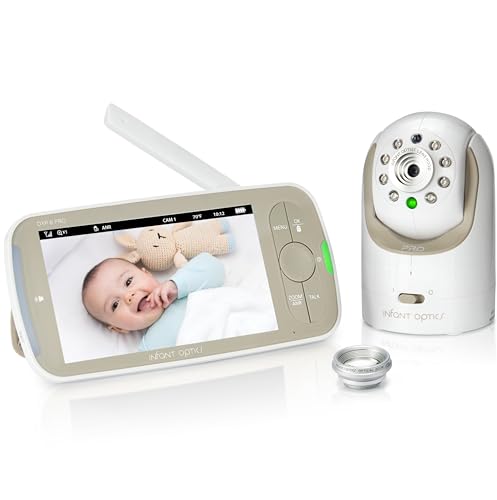
The DXR-8 PRO is the veteran of this roundup and the value pick at this tier: a deliberately offline monitor in a lineup of cloud cameras. There is no Wi-Fi, no app, no account and no subscription — the camera talks directly to its dedicated 5-inch parent display over a closed wireless link, and that is the entire system. Resolution is 720p, which sounds modest next to 4K badges, but the PRO’s party trick is Active Noise Reduction, which filters the hiss, hum and static that make most audio monitors fatiguing to listen to all night. Interchangeable lenses (a standard lens in the box, with optical zoom and wide-angle lenses available from the maker) let you tune the view to a small nursery or a wide toddler room, and the camera pans, tilts and zooms from the parent unit.
Why does a 720p offline monitor belong in an under-$300 guide at all? Because for a large group of parents it removes every recurring complaint about the smart cameras: nothing to hack through the home network, nothing that stops working when the internet drops, no plan quietly renewing, no firmware update changing the app the week the baby arrives, and a screen that is always a screen — never a phone you also need for everything else. Grandparents and babysitters can use it with zero instruction, which is a feature no app has ever matched. The honest limitations are the mirror image of those strengths: you cannot check in from work or the driveway, there are no cry-detection smarts, no sleep data, no recordings to review, and the picture will not reward pinch-zooming the way the eufy or CuboAi will. Range is also a physical fact — thick walls and distance between nursery and parent unit matter in a way they do not for Wi-Fi systems.
Setup is the simplest here: place the camera where it sees the crib, keep it and its cord well out of reach (the same cord discipline applies — out of the crib, secured, at least a full arm’s length plus growth margin from small hands), pair nothing, create no account, and you are monitoring in minutes. Battery life on the parent unit, the availability of a second camera for siblings, and the lens options are the three things to verify on the listing for your household’s layout. As the second monitor in a house that already owns a smart camera — the travel unit, the grandparents’ house unit, the just-works backup — it has no real rival in this guide.
For a true beginner this is the reference point: unbox, place the camera, switch on the screen, done. There is nothing to update, pair, subscribe to or troubleshoot — which is why it tops a beginners’ list despite being the least technically advanced camera here.
What we like:
- Completely offline: no Wi-Fi, no app, no account, no subscription, ever
- Active Noise Reduction makes overnight audio far less fatiguing
- Instant, babysitter-proof setup on a dedicated screen
- Interchangeable lenses adapt it from crib close-up to whole-room view
Honest limitation: 720p picture, no remote viewing, no recordings and no smart alerts of any kind.
Choose it if: Choose the DXR-8 PRO if privacy, simplicity and zero running costs outrank apps and analytics in your house.
Skip it if: Skip it if you need to see the nursery from outside the home or want any form of sleep tracking.
eufy Baby Monitor E21 — 4K Camera with 5-Inch Display
The eufy E21 is the pick for parents who want flagship picture quality without handing the nursery to a subscription. The camera shoots 4K UHD and pans and tilts under remote control with up to 8x zoom, while the box includes a proper 5-inch parent display — so the monitor keeps working on its own screen even if you never connect it to Wi-Fi at all. That hybrid design is the E21’s signature: run it as a closed local system on the included display, or link it to the eufy app for phone viewing and 24/7 recording in the app when you want remote access. Active noise reduction keeps nursery sound from turning into a hiss of white noise on the parent unit, and the camera itself carries a built-in battery, so it can ride out a short outage or work for naps in a room with an awkward outlet.
On the money question, the E21 is refreshingly plain: no subscription is required for its core monitoring, and recording is handled locally rather than sold back to you as a cloud plan. That changes the real cost of ownership across two or three years of use more than any single feature on this page. The trade-offs are equally plain. The parent display is 720p, so the 4K detail is best appreciated in the app feed and in zoomed views rather than on the handheld screen, and families who want sleep analytics, cry diaries or milestone tracking will find none of that here — eufy sells you an excellent camera and screen, not a data service. App features also depend on eufy’s ecosystem and account, so read the current privacy and app terms the way you would for any connected camera, and keep firmware updated.
In daily use the E21 behaves like the grown-up security-camera brand it comes from: motion and sound alerts, two-way talk, temperature awareness and straightforward pan-tilt controls. The camera needs a stable perch or mount with its power cable dressed safely away from the crib — the battery is a bridge, not a lifestyle, and a camera within grabbing range of a standing baby will eventually be grabbed. For twins or a nursery-plus-playroom setup, confirm how many cameras the display and app support before building a multi-room plan around it. If your shortlist question is “which of these will still be fully mine in three years with no monthly bill,” the E21 is the answer in this tier.
The E21 is the beginner’s upgrade path: the included screen means it works like the Infant Optics on day one, and the app is there to explore later when you feel ready — not on the first exhausted night.
What we like:
- Best-in-guide camera resolution with pan, tilt and 8x zoom
- Included 5-inch display works with Wi-Fi switched off entirely
- No subscription needed for core monitoring or local recording
- Built-in camera battery bridges outages and awkward outlets
Honest limitation: No sleep analytics or smart diary features, and the parent screen is 720p despite the 4K sensor.
Choose it if: Choose the E21 if you want premium hardware, a real parent screen and zero ongoing fees, and you do not care about sleep data.
Skip it if: Skip it if nightly sleep reports are the whole point of spending at this tier.
Owlet Cam 2 (Gen 2)
The Owlet Cam 2 is the compact, good-looking Wi-Fi camera in this tier — a small 1080p unit with a wide-angle lens, 4x digital zoom, night vision, two-way talk and sound, motion and cry notifications through the Owlet app, with temperature and humidity sensing built in. It is the camera-only member of a family whose famous sibling is a wearable sock (sold separately and not part of this pick); judged purely as a camera, its appeal is a clean picture, a tidy magnetic-base design that sits neatly on a shelf or wall mount, and an app experience built for exhausted one-handed use at 3 a.m. Video is encrypted in transit per the maker, and the app is where everything lives: there is no parent screen and no local memory-card slot, so the Cam 2 is a cloud-app monitor through and through.
Cost honesty for the Owlet: the camera itself has historically worked without a mandatory subscription for live viewing and basic alerts, and Owlet has been adding optional in-app extras over time — so check the current app plan page before you buy and confirm which features are free today, because packaging in this category shifts. Also be clear-eyed about what a camera can and cannot tell you: cry and motion notifications are convenience alerts, and any breathing or wellness language around the wider Owlet ecosystem refers to separate wearable products with their own instructions and limitations — the Cam 2 on its own is a video monitor, not a health device, and nothing it shows replaces safe-sleep practice or your own checks. The wide-angle lens is a genuine practical plus in small nurseries, where a camera often sits closer to the crib than the textbooks assume and narrower lenses crop the mattress edges.
Living with the Cam 2 is easy in the ways that matter nightly: background audio options, quick talk-back, and a picture that holds up well in a dark room. Its weaknesses are the category’s usual ones — total dependence on your Wi-Fi and phone, no offline fallback screen for a sitter who does not have the app, and no sleep analytics depth to rival the Nanit if data is your thing. Mount it or place it with the cable routed down and away from the crib, never draped where a standing child can reach it. As a first smart camera for parents who want the nursery on their phones and nothing more complicated, it earns its place here on simplicity.
If you know you want the nursery on your phone, the Owlet is the softest landing: one small camera, one friendly app, no stand geometry or plan decision required before you can see your baby.
What we like:
- Clean 1080p picture with a genuinely useful wide-angle lens
- Temperature and humidity sensing plus cry notifications in one tidy unit
- Small, neat design that disappears on a shelf
- Simple app that is easy to operate one-handed overnight
Honest limitation: App-only viewing: no parent screen, no local recording, and feature packaging can change with app updates.
Choose it if: Choose the Cam 2 if you want a straightforward phone-based monitor from an established nursery brand and do not need sleep analytics.
Skip it if: Skip it if you want recordings stored at home or a screen a babysitter can use without your phone.
CuboAi Smart Baby Monitor 3 — Floor Stand Set
The CuboAi Smart Baby Monitor 3 is the challenger built around one idea: proactive alerts. Its 2.5K QHD camera watches the crib and, per the maker, uses on-device AI to flag a covered face or a rollover onto the stomach, to distinguish a true cry from background noise, and to warn you if the baby enters a danger zone you draw in the app once they start standing and roaming. This floor-stand set puts the camera on a tall stand behind the crib for the overhead angle those alerts are designed around, with no drilling. Two-way audio, lullabies, night vision and a room humidity sensor round out the nursery basics, and the bird-shaped camera is deliberately the least clinical-looking device in this guide.
The honest framing for those headline alerts: they are manufacturer-described detection features, not medical monitoring. A covered-face alert is a prompt to go and look — it is not a guarantee of detection in every bedding arrangement, lighting condition or network state, and CuboAi does not sell this as a medical device. Treat the AI as an extra set of eyes that sometimes blinks, keep the crib bare per safe-sleep guidance, and never let an app notification substitute for your own checks. Where CuboAi scores well on ownership cost is that its core alerts and a rolling window of playback have historically been usable without a mandatory paid tier, with an optional premium plan adding longer history and extras; check the current plan page before buying, because app feature packaging in this category changes often. Video runs through CuboAi’s cloud app — there is no local memory-card recording and no dedicated parent unit — so, like the Nanit, it lives or dies by your Wi-Fi and your feelings about cloud accounts for nursery footage.
Setup is genuinely renter- and grandparent-friendly: assemble the stand, place it so its base cannot be pulled into the crib, route the cable down the stand and away from small hands, and keep the whole assembly far enough back that a standing toddler cannot grab the camera or the cord. The floor stand also makes the CuboAi easy to move between rooms or take to a caregiver’s house, though the overhead alerts are calibrated for the stand’s crib view and will not perform the same way aimed across a playroom. Picture quality from the QHD sensor is a real step up from 1080p when you pinch-zoom on a phone screen, which is how most parents actually check whether eyes are open or closed.
The CuboAi asks a little more of you — assembling a stand, drawing a danger zone — but repays it with the most hand-holding alerts here. Its app explains what it is telling you, which matters when everything is new.
What we like:
- Covered-face and rollover alerts are the headline act (maker AI claims)
- Floor stand included — overhead view with no drilling
- 2.5K QHD picture is visibly sharper when zooming on a phone
- Core alerts usable without a mandatory subscription (verify current plan terms)
Honest limitation: No local storage and no parent screen: if your Wi-Fi or CuboAi’s cloud stumbles, so does your monitor.
Choose it if: Choose the CuboAi 3 if proactive crib-safety alerts matter more to you than sleep diaries, and you want the overhead view without touching a wall.
Skip it if: Skip it if you want recordings kept inside your home, or a screen that works when the internet does not.
Lollipop Baby Monitor (Cotton Candy)
The Lollipop is the design object of the group: a 1080p Wi-Fi camera on a flexible, bendable stem that wraps around a crib rail, a shelf edge or a floor lamp, or stands on a surface with its tail as a tripod. That mount is not a gimmick — it solves the most common nursery problem, which is that the perfect camera position is rarely where a shelf happens to be. The maker’s headline software feature is true crying detection, designed to distinguish an actual cry from a barking dog or a door slam before it pings your phone, alongside two-way audio, infrared night vision, lullabies and white-noise playback, and event clips in the app. There is no parent unit; like the Nanit and Owlet, your phone is the screen.
Two honesty notes belong with the Lollipop. First, the app sells an optional paid plan that unlocks extras such as the maker’s breathing-monitoring and sleep-tracking features (maker-described, camera-based estimates — not medical measurements, and no substitute for safe sleep or in-person checks); the camera’s core live view and crying detection are the free foundation, but confirm the current plan split on the maker’s page before purchase, because the line between free and paid has moved before. Second, the wrap mount tempts people to attach the camera directly to the crib rail with its cable nearby — resist sloppy versions of this. The camera body may grip the rail, but the power cable must still be routed away from the crib interior and out of reach, and once your baby can stand and grab, a rail-mounted camera is within range of determined hands; move it further back and re-check the view. Cloud dependence applies here too: no local card recording, so the app and your Wi-Fi are the whole system.
Where the Lollipop shines is flexibility across the first two years: crib-side now, playroom shelf later, wrapped around a travel crib at a relative’s house in between. Its picture and night vision are solid rather than class-leading, and data people will find its sleep features thinner than Nanit’s. But as the one camera in this guide that can perch almost anywhere without a stand, a shelf or a drill, it solves real rooms that defeat fixed-mount rivals — which is why it closes out this pool.
Mounting defeats more beginners than software does. The Lollipop’s bendy stem means the camera fits your room instead of the reverse; just follow the cable rule in its review as carefully as any other model’s.
What we like:
- Flexible stem mounts almost anywhere — no shelf, stand or drilling needed
- True crying detection aims to cut false alerts (maker feature)
- Doubles as a travel and playroom camera as your child grows
- Lullabies and white noise built in
Honest limitation: Best extras sit in a paid in-app plan, and there is no local recording or parent screen.
Choose it if: Choose the Lollipop if your nursery has no good shelf or wall for a camera and you need the mount itself to be the solution.
Skip it if: Skip it if you want deep sleep analytics or an offline fallback screen.
Nanit Pro Smart Baby Monitor — Camera & Wall Mount
The Nanit Pro is the camera this price tier is really about. It mounts on the wall directly above the crib and looks straight down, so instead of the angled, half-obscured view you get from a camera parked on a dresser, you see the entire mattress in one frame. The feed is 1080p over Wi-Fi to the Nanit app, with two-way audio, background audio so you can listen while your phone does other things, a built-in nightlight and white-noise sounds, plus temperature and humidity readouts for the nursery. There is no dedicated parent screen in the box; your phone or tablet is the monitor, which is either the Nanit’s biggest convenience or its biggest drawback depending on how you feel about handing your phone a full-time job overnight.
What separates the Nanit from cheaper Wi-Fi cameras is the layer of software sold as Nanit Insights, and this is where you must read the fine print before you buy. Live video, sound and motion alerts, two-way talk and the maker’s breathing-motion monitoring (which works with Nanit’s Breathing Wear garments, sold separately) run without a paid plan. But sleep analytics, saved video history and clips, milestone tracking and smart alerts such as cry detection sit behind the Insights subscription, which is billed annually; a short trial of the entry plan is included with a new camera and then renews automatically unless you cancel. In plain terms: the hardware price buys an excellent camera, and the ongoing plan buys the diary. Budget for both, or be honest with yourself that you will use it as a live monitor only. Nanit also states plainly that the camera is not a medical device; its breathing-motion feature is a maker-described convenience for awareness, not a health or life-safety guarantee, and it never replaces safe-sleep practices or checking on your baby in person.
Practical notes matter with an overhead mount. The wall mount needs a wall you are allowed to drill into and an outlet within cord reach, and the cord must be routed completely out of the crib and out of reach, secured flat to the wall — a dangling cable near a crib is a genuine strangulation hazard, and Nanit’s own mounting guidance treats cord management as part of the install, not an afterthought. Sleep features also require that overhead view, so a Nanit perched on a shelf at an angle will not deliver the analytics you paid for. Video is cloud-assisted through the app rather than stored on a local card, so your home Wi-Fi quality and your comfort with a cloud account are part of the purchase.
We place the Nanit last for beginners deliberately: it is a wonderful second-stage camera. Start here only if you already know you want sleep tracking and are comfortable with an annually billed plan starting after a trial.
What we like:
- True overhead view of the whole crib from the included wall mount
- Deepest sleep-tracking ecosystem in this roundup when paired with an Insights plan
- Background audio, nightlight and white noise built in
- Temperature and humidity sensing in the app
Honest limitation: The features most people buy it for — sleep analytics and video history — require the paid Insights plan after the trial; live viewing alone does not.
Choose it if: Choose the Nanit if you want the data: nightly sleep summaries, a growth-and-moments record, and the clearest overhead picture of the crib, and you accept an annual plan as part of the real cost.
Skip it if: Skip it if you refuse subscriptions on principle, if you cannot drill into the nursery wall, or if you want a screen that is not your phone.
Side-by-side comparison
The table below compresses the differences that actually decide this purchase: how you watch, how recordings are kept, and whether a plan is part of the deal. Read it alongside the reviews — the right choice is the row whose compromises you mind least.
| Pick | How you watch | Recording / storage | Plan needed? |
|---|---|---|---|
| Infant Optics DXR-8 PRO | Dedicated 5-inch screen only | None — live only | No, never |
| eufy Baby Monitor E21 — 4K Camera with 5-Inch Display | Included 5-inch screen + app | Local recording | No |
| Owlet Cam 2 (Gen 2) | Phone app (Wi-Fi) | App-based, no local card | No for core use (check app extras) |
| CuboAi Smart Baby Monitor 3 — Floor Stand Set | Phone app (Wi-Fi) | Cloud app playback | No for core alerts (optional premium) |
| Lollipop Baby Monitor (Cotton Candy) | Phone app (Wi-Fi) | App event clips | No for core use; extras are paid |
| Nanit Pro Smart Baby Monitor — Camera & Wall Mount | Phone app (Wi-Fi) | Cloud history with Insights plan | Yes, for sleep analytics & history |
How to choose the best baby security camera for beginners under $300
Beginners should buy in this order: screen first, smarts later. Decide whether a dedicated parent screen would calm you (for most first-timers, it does), then choose the simplest camera that includes one and still fits your room. Only skip the screen if you are certain your phone can be the monitor all night, every night, including when relatives babysit — sitters are the hidden test every app-only system eventually faces.
Next, count the decisions a camera asks of you before it works: accounts, Wi-Fi passwords, mount choices, plan trials, firmware updates. Each is small; stacked together at 38 weeks they are a project. Prefer the camera whose box-to-working path you can describe in one sentence, and set up a week before the due date, in daylight, with the crib in its final position — then route the cable out of reach, test the night view in a dark room, and practise the talk-back button before it matters.
Finally, protect future-you from surprise costs: if your camera includes a trial plan, put the renewal date in your calendar the day you activate it, and learn which features stop if you cancel. And keep the receipt and box until you have survived a full week of nights — the right beginner camera is the one that is still making your life easier on night seven, not the one with the longest feature list on day one.
Living with it: the first month
Here is what the first month actually looks like with a beginner-friendly camera. Week one is placement and trust: you will move the camera twice, learn that the night picture looks different from the day picture, and check the screen forty times a night — that is normal, and it fades. Week two is sound: you learn your baby’s ordinary noises, the ones that mean ‘asleep and dreaming’ versus the ones that mean ‘coming to find you’, and the monitor’s job quietly shifts from surveillance to confirmation. By week four the camera should feel boring. Boring is the goal.
Two small habits separate calm beginners from frazzled ones. Keep the charger for the parent screen in the room where the screen lives, not wherever it was first plugged in — a dead screen at midnight is the most common beginner emergency and the easiest to prevent. And write the one-page version of your setup down for sitters: which screen, which button talks, what a normal alert sounds like. If your camera needs more than one page, that is information about the camera, not about your relatives.
One last beginner truth: every parent in history has stood in a doorway at 3 a.m. watching a monitor show a peacefully sleeping baby while listening to that same baby cry through the wall, wondering which to believe. Believe the wall, go and look, and let the camera be what it is — a tool that extends your eyes, never a verdict that replaces them. The parents who love their monitors are the ones who hold them to that modest job description from the very first night.
Common mistakes to avoid
- Buying the most advanced camera first. Analytics and AI alerts are wonderful once you have a routine. On day one they are homework. Simple and working beats powerful and half-configured.
- Setting up after the baby arrives. Mounts, Wi-Fi pairing and app accounts are daylight jobs. Install a week early, test in the dark, and do not let the first night be the first test.
- Missing the trial renewal. Some cameras start a subscription trial at activation. Note the date, decide calmly, and cancel in time if you do not want the plan — the newborn weeks are the worst time to audit bills.
- Trusting alerts instead of learning your baby. Cry and motion notifications are aids with false alarms and misses. Use them to decide when to look, never as a verdict that everything is fine.
- Skipping the cord check because setup ‘seemed fine’. Cables must be out of the crib and out of reach from day one, and re-checked when your baby starts standing — reach arrives suddenly.
Final recommendation
Beginners: buy the Infant Optics if you want the calmest possible start, or the eufy E21 if you want that same screen-based simplicity with a flagship camera attached. Choose the Owlet when you are sure the phone is your screen, the CuboAi when guided alerts appeal, and the Nanit only when you actively want sleep data and accept its plan — it will still be there, and better understood, in a few months.
Above all, judge your purchase on night seven, not on the unboxing. The right first camera is the one that disappeared into your routine: charged, working, understood by everyone in the house, with its cord safely out of reach and no surprise charge on your card. Get those basics right and every later upgrade is a pleasure rather than a rescue.
Our shortlist, in order: Infant Optics DXR-8 PRO; eufy Baby Monitor E21 — 4K Camera with 5-Inch Display; Owlet Cam 2 (Gen 2). Check the current listing for each before you decide, and re-read the subscription and storage notes in their reviews above — at this tier, those two lines matter as much as the camera.
Frequently asked questions
What is the simplest baby camera for a first-time parent?
In this guide, the Infant Optics DXR-8 PRO: no Wi-Fi, no app, no account — place the camera, turn on the included screen, and you are monitoring. The eufy E21 is nearly as simple while adding a much better camera and optional app viewing.
Do I need Wi-Fi for a baby monitor?
No. Dedicated parent-unit monitors work without any network, and hybrid models like the eufy here can run on their included screen alone. Wi-Fi is only required if you want phone viewing from outside the room or home, smart alerts, or sleep tracking.
Will I be charged automatically after a free trial?
On models with trials — the Nanit in this guide is the clearest example — yes, the plan renews automatically at the end of the trial unless you cancel. Note the renewal date when you activate, and check which features continue free so the decision is calm rather than rushed.
What do ‘smart’ alerts actually do?
They are maker-described detection features: the camera’s software tries to recognise events such as crying, a covered face or motion, and notifies your phone. They are helpful prompts to look, with occasional false alarms and misses — not supervision, and never a substitute for safe-sleep practice and your own checks.
When should I set the camera up?
About a week before you need it, in daylight, with the crib in its final place. Test the picture in a dark room, confirm the cord is completely out of reach, and make sure anyone who will babysit can work the screen or app without you.
Can I start simple and upgrade later?
Yes — many families do exactly that. A simple monitor now remains useful for travel, siblings or grandparents’ houses even if you later add a smart camera for the nursery, so a beginner-first purchase is rarely wasted money.
Related guides
Still deciding on budget or fit? These companion guides in the same series cover the neighbouring tiers and lenses: